写好、跑起来、在浏览器里打开
最直接的用法:让 Agent 写一个页面和一个本地服务,启动后在手机浏览器里打开。上面的旅行清单就是这样做出来的,一共两个文件,不依赖任何第三方包。
 mobby · 写程序
mobby 把一套 Linux 运行环境和四个编程 Agent 装进了手机。说清楚想要什么,Agent 就在本机写代码、跑起来、打开给你看。写成「程序」以后,还能装进 mobby,按时运行、发通知、接收分享。
你说做一个旅行打包清单,按证件、衣物、电子和洗漱用品分类。可以勾选、添加、删除,刷新后还能保留。
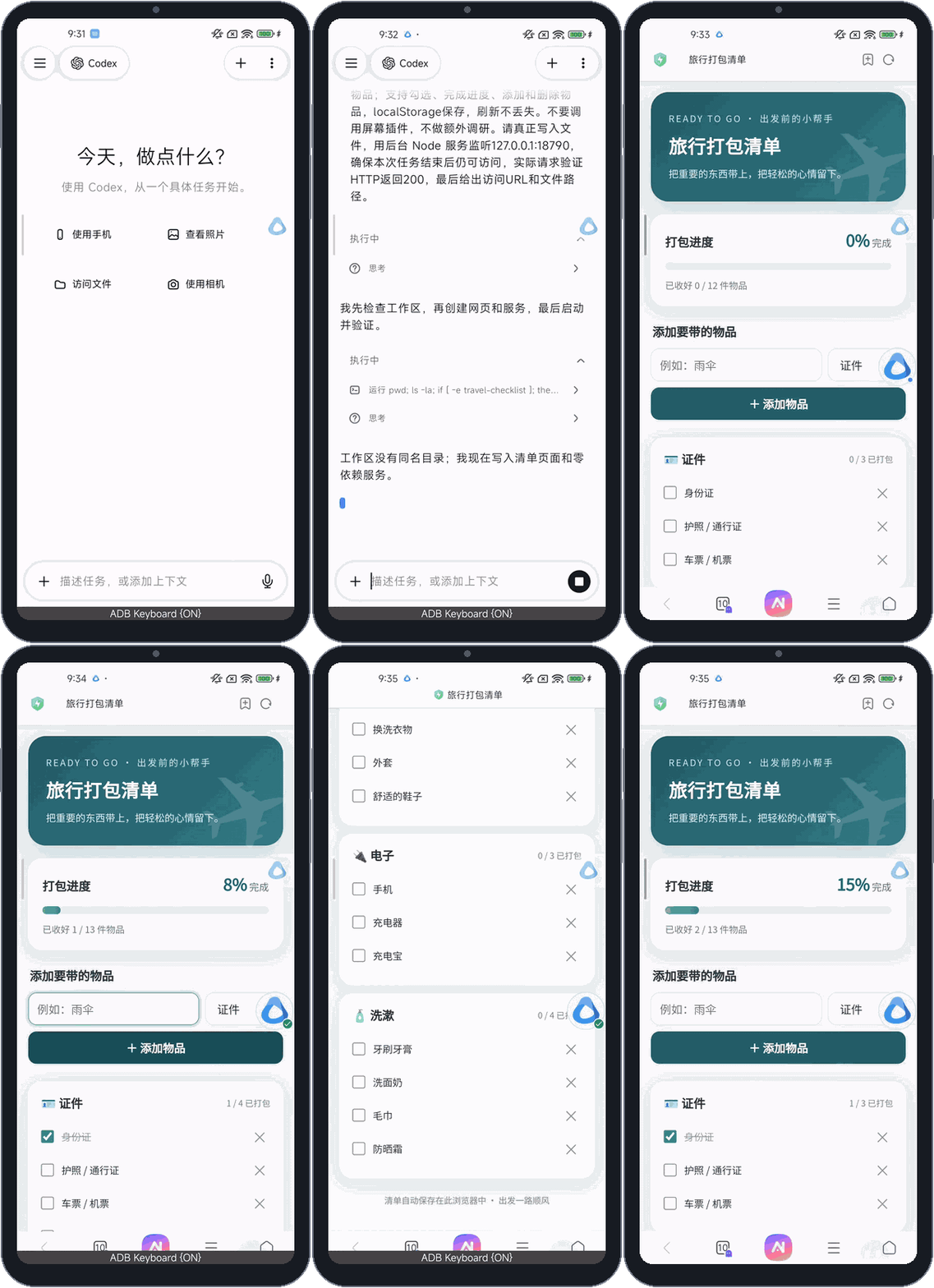
Agent 拿到的是一个真正的 Shell,不是只会回答代码问题的聊天框。
mobby 内置一套基于 Termux 的运行环境。首次打开时,它会把工具和四个 Agent 装进应用自己的目录,并初始化 Git 工作区。之后,Agent 可以在这里读写文件、安装 npm 包、启动服务,也能运行它自己写的测试。
对话归属于项目,每个项目绑定一个固定目录。同一个对话里,Agent 会接着上一轮的会话继续。切换页面、把 mobby 放到后台,都不会打断正在运行的任务。
Agent 以 mobby 的应用身份在 Android 沙箱里运行,不获取 root,也不改系统权限。它能动的文件,就是 mobby 自己的目录和你授权给它的文件夹。
最直接的用法:让 Agent 写一个页面和一个本地服务,启动后在手机浏览器里打开。上面的旅行清单就是这样做出来的,一共两个文件,不依赖任何第三方包。
想让它长期留在手机上:有自己的页面,能在后台定时运行、发通知、存数据、调用手机能力,就写成 mobby 程序。装进去以后,权限、运行和记录都由 mobby 管,不用自己维护一个服务。
入口:输入框「+」菜单 → 程序开发
它就是工作区里的一个文件夹:一份清单,一段后台逻辑,一个页面。
expense-log/
├─ manifest.json  # 名称、版本、权限、配置、事件订阅
├─ main.js        # 后台逻辑:Node,按事件运行
└─ ui/
   ├─ index.html   # 页面:在 mobby 里打开
└─ app.jsconst mobby = require('mobby');
mobby.on('onSchedule', async () => {
const res = await mobby.net.fetch(url);
await mobby.sql.execute('INSERT …');
await mobby.notify.show({
title: '有更新', openUi: true });
});后台逻辑和页面用的是同一套 SDK,每次调用都走同一条管线:先认证是谁在调用、检查参数,再看权限,写下操作记录,最后才真正执行。后台进程只在需要时启动,比如定时到了、页面发来消息、有人分享文字过来,空闲后自动退出。
你负责说清楚需求和点确认,写代码、检查、修改都交给手机上的 Agent。
装好之后从哪里打开?左侧栏的「程序」分组、空对话页的程序图标、长按桌面 mobby 图标弹出的快捷方式,以及程序发出的通知,都能直接打开它的页面。程序还可以出现在系统分享面板里,接收别的应用分享过来的文字。
每项能力都要在清单里申请,由你在安装时授予。
键值、文件和 SQLite 数据库,都只属于这个程序。密钥放进加密存储。
HTTP 请求和 WebSocket 长连接,按域名授权,默认只允许加密连接。
每天几点、每隔多久,到点在后台运行;发通知,点开直接进入程序页面。
从别的应用分享文字过来,或者点一下桌面快捷方式,就运行程序里对应的处理逻辑。
安装时由你选择网关和模型,并设每日次数和 token 上限。目前只支持文字。
复用 mobby 对话里同一套设备执行器,系统权限照常由 Android 询问。
知道哪个应用来到前台,读取它的界面,点按钮、填输入框、返回。授权按应用划分;对话里的 Agent 正在操作屏幕时,程序只能读,不能点;密码框和 mobby 自己的窗口永远碰不到。需要开启「mobby 屏幕操作」无障碍服务。
程序由 AI 写成,所以 mobby 不默认信任它。
{{secret:name}} 占位符,而且只会填给绑定的那个域名。下面这些程序都只描述了需求,由手机上的 Pi 写成,再装到小米手机和平板上实测。
每天 21:00 提醒记账,币种在安装时填写。后来让 AI 加上 CSV 导出,更新时只需确认新增的「读写自己的文件」权限。
原有记录都在,导出的 CSV 带表头和全部记录。
每 15 分钟带上凭据请求一个接口,把结果写进数据库并发通知,页面列出最近 20 条。
熄屏、mobby 在后台,约 6 小时内 22 次定时运行全部正常结束。
订阅应用切到前台的事件,看到「跳过」按钮就点掉。有的广告不理会无障碍点击,Pi 读了开发指南后自己改成模拟触摸。
冷启动视频 App 后约 2–3 秒点掉广告,直接进入首页。
点一下桌面快捷方式,连上回显服务,发送带时间的消息,收到一致的回显后发通知,并保留最近 20 次记录。
通知「✓ Echo matched」,两次实测往返 2.2 秒和 3.4 秒。
这些是现在做不到或还没验证的地方。
ai.call 目前只支持文字;由手机 AI 写程序调用它的完整流程还没在真机上验证。mobby · Coding
mobby puts a Linux runtime and four coding agents on your phone. Describe what you need, and the agent writes the code on the device, runs it and opens it for you. Turn the result into a program and mobby keeps it installed, running on schedule, sending notifications and receiving shares.
You sayMake a travel packing list with categories for documents, clothes, electronics, and toiletries. Let me check off, add, and delete items, and keep my changes after a refresh.
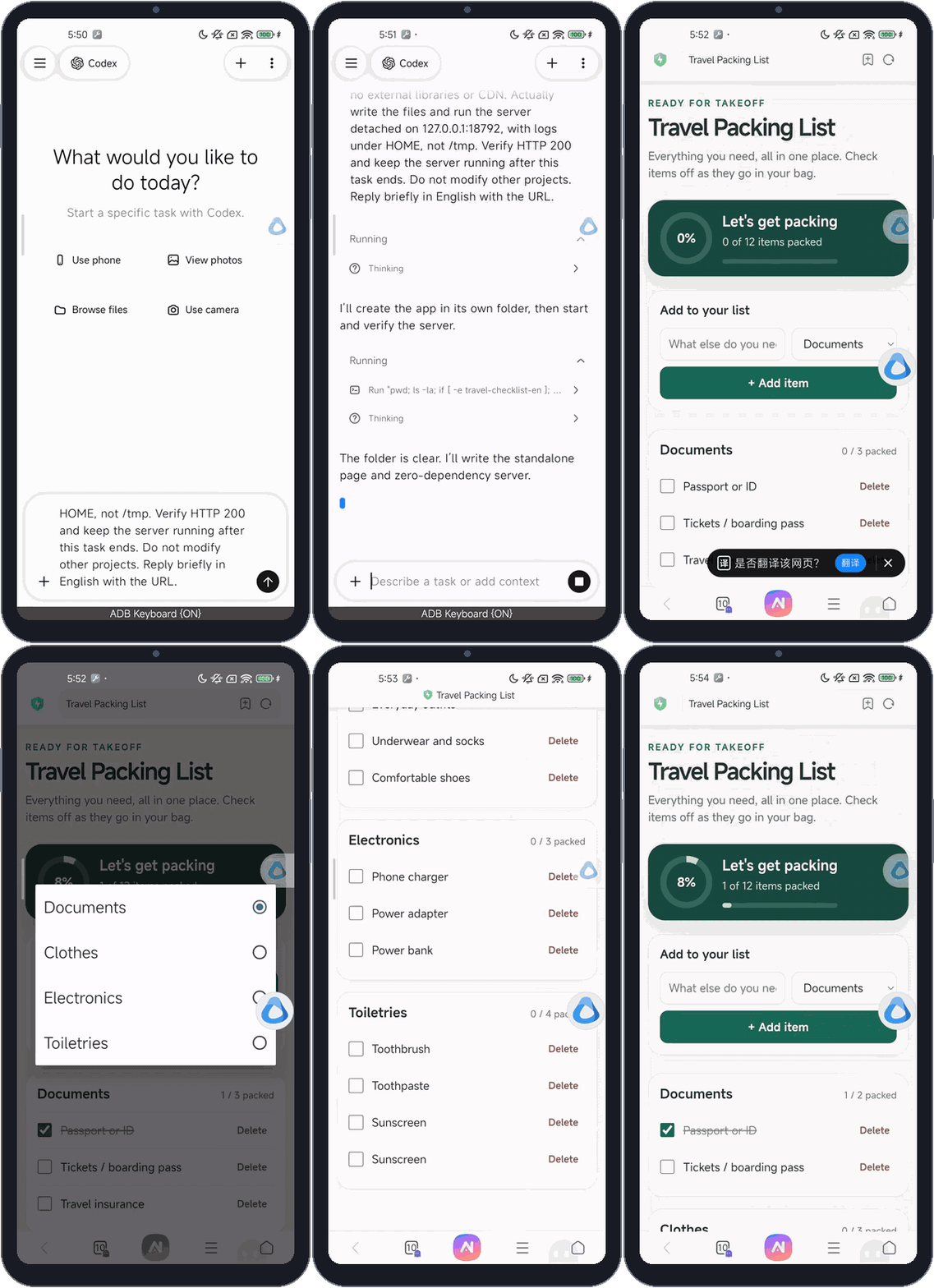
The agent gets a real shell, not a chat box that only talks about code.
mobby ships a runtime based on Termux. On first launch it installs the tools and the four agents into the app's own folder and initializes a Git workspace. From then on the agent can read and write files, install npm packages, start servers and run the tests it writes.
Conversations belong to projects, and each project has a fixed folder. Within a conversation the agent picks up its previous session. Switching pages or sending mobby to the background does not interrupt a running task.
The agents run as the mobby app inside the Android sandbox, with no root and no changes to system permissions. They can touch mobby's own folders and the folders you grant, nothing else.
The direct route: the agent writes a page and a local server, starts it and opens it in the phone's browser. The packing list above was made this way, in two files with no third-party packages.
When you want something to stay on the phone, with its own page, running in the background on a schedule, sending notifications, storing data and using phone features, make it a mobby program. Once installed, mobby handles permissions, runs and records, so there is no server to babysit.
Where: the + menu in the message box → Program development
It is just a folder in the workspace: a manifest, some background logic and a page.
expense-log/
├─ manifest.json  # name, version, permissions, config, events
├─ main.js        # background logic: Node, runs on events
└─ ui/
   ├─ index.html   # the page, opened inside mobby
└─ app.jsconst mobby = require('mobby');
mobby.on('onSchedule', async () => {
const res = await mobby.net.fetch(url);
await mobby.sql.execute('INSERT …');
await mobby.notify.show({
title: 'Updated', openUi: true });
});The background logic and the page share one SDK, and every call takes the same path: authenticate the caller, check the arguments and permission, write an operation record, and only then execute. The background process starts only when needed, for example when a schedule fires, the page sends a message or someone shares text to it, and exits when idle.
You describe what you need and confirm. Writing, checking and fixing are up to the agent on your phone.
Where to open it later. The Programs group in the sidebar, the program icons on an empty conversation, the shortcuts when you long-press mobby's home-screen icon, and the program's own notifications all open its page directly. A program can also appear in the system share sheet to receive text from other apps.
Every capability is requested in the manifest and granted by you at install.
Key-value pairs, files and a SQLite database, all private to the program. Keys and tokens go to encrypted storage.
HTTP requests and WebSocket connections, granted per domain, encrypted connections only by default.
Run in the background at a daily time or a fixed interval, and send notifications that open the program's page.
Share text from another app, or tap a home-screen shortcut, to run the matching handler.
You pick the gateway and model at install and cap daily calls and tokens. Text only for now.
The same device executors as mobby's chats; Android still asks for system permissions as usual.
Know which app comes to the front, read its interface, tap buttons, fill fields and go back. Access is granted per app. While an agent in a chat is using the screen, programs can only read; password fields and mobby's own windows are always off limits. Needs the “mobby Screen Control” accessibility service.
Programs are written by AI, so mobby does not trust them by default.
{{secret:name}} placeholder, filled in only for the domain it is bound to.For each of these, only the need was described. Pi on the phone wrote the program, which was then tested on a Xiaomi phone and tablet.
A reminder to log expenses every day at 21:00, with the currency set at install. Later the AI added CSV export; updating asked only for the new file permission.
Earlier records were kept, and the CSV had a header and every record.
Every 15 minutes, call an API with a stored credential, save the result and send a notification; the page lists the latest 20.
With the screen off and mobby in the background, 22 scheduled runs over about 6 hours all finished normally.
Watch for apps coming to the front and tap “Skip” when it appears. Some ads ignore accessibility clicks; after reading the developer guide, Pi switched to a simulated touch on its own.
On a video app's cold start, the ad was skipped within about 2–3 seconds.
Tap a home-screen shortcut to connect to an echo server, send a timestamped message, notify once the echo matches, and keep the last 20 results.
Notification “✓ Echo matched”; two runs took 2.2 s and 3.4 s round trip.
What it cannot do yet, or what has not been verified.
ai.call is text only, and a program written by the phone's AI calling it end to end has not been verified on a device.