它在副屏上忙,你照常用手机
Agent 在一块看不见的副屏上打开和操作应用,你留在 mobby 里看预览。ADB 客户端就在 mobby 里,不用装其他 App,也不用连电脑。
需要:Android 13 及以上;开启系统「无线调试」,并在 mobby 里配对一次。
 mobby · 操作手机
在对话里加上「AI 操作手机」,说出想做的事。mobby 里的 Agent 会读屏幕、点按、输入、翻页,一步一步把它做完。它在一块独立的副屏上工作,你可以在旁边看着,也可以随时接手。
你说去应用商店下载番茄ToDo,打开添加待办的功能。
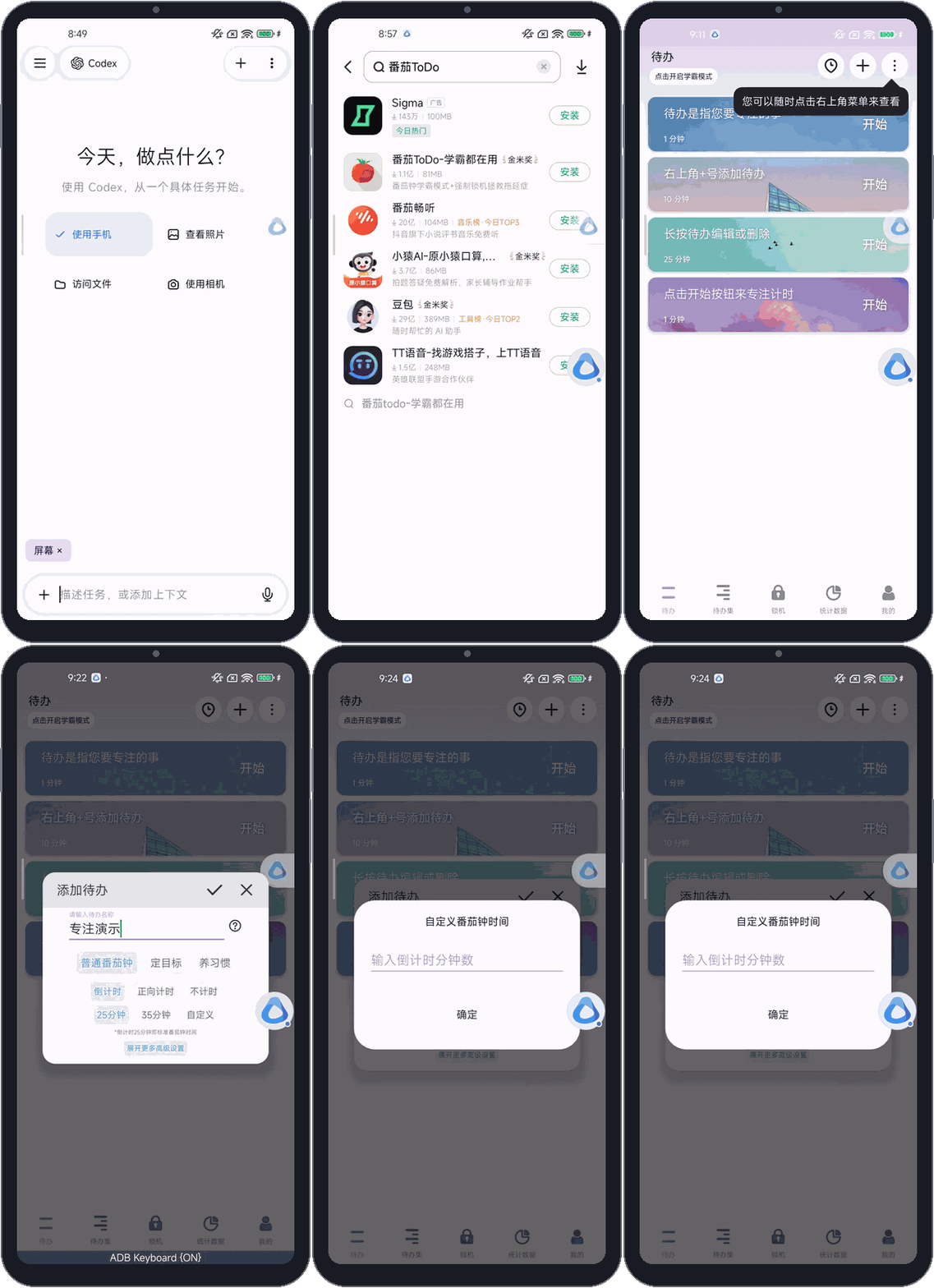
Agent 不靠记忆盲点。它每做一步都要读一次屏幕,动作做完再读一次,确认页面真的变了。
循环往复,直到任务完成,或者需要你来决定。
每个动作都会作为一张卡片出现在对话里,和 Agent 的思考、回复按发生顺序排在一起。运行时卡片展开,结束后自动折叠,点标题可以重新查看当时的画面和结果。
结果说不准的时候,mobby 会如实标出来,不会显示成成功。已经发出去的点按和输入不会被自动重放,避免重复下单、重复发送这类副作用。连接断了要恢复时,Agent 也得先重新读屏,才能继续动手。
做过的流程可以记住。Agent 可以把一段通过验收的点按和输入封存成流程,下次按编号回放。回放前会先核对当前的应用、页面结构和目标控件,对不上就停下,不会盲点。流程里只保存控件名称、动作和页面结构摘要,不保存你输入的文字。
在「设置 → 运行环境 → 屏幕操作模式」里,选择 Agent 在哪块屏幕上工作。
Agent 在一块看不见的副屏上打开和操作应用,你留在 mobby 里看预览。ADB 客户端就在 mobby 里,不用装其他 App,也不用连电脑。
需要:Android 13 及以上;开启系统「无线调试」,并在 mobby 里配对一次。
执行时 mobby 隐藏自己的悬浮层并保持亮屏。任务进行时,手机交给它来操作。适合 Android 12 及以下,或者系统没有无线调试的机型。
需要:开启「mobby 屏幕操作」无障碍服务和任务通知。
默认置灰。点「检查 Root 权限」,在超级用户管理器里同意后才能选择。mobby 不会帮你 root 手机,也不改系统权限。
需要:Android 13 及以上,设备本身已经有 su。
选好虚拟屏模式后,每个任务都有一块自己的屏幕。
主屏 · 你留在 mobby 里,右上角是实时预览
副屏 · Agent720×1280 独立显示,你看不见它
任务开始时,mobby 会创建一块 720×1280 的独立显示屏。Agent 先找到目标应用,把它启动到这块副屏上;之后的读屏、点按、滑动都只发生在这里,碰不到你的主屏。
副屏不是应用分身。应用在副屏里用的还是你手机上原来的登录和数据。少数应用会自己跳回主屏,或者只允许一个实例;遇到这种情况,mobby 会明确报告,而不会把任务挪到你的主屏上继续做。
登录、验证码、滑块这些步骤,Agent 不该替你做主,很多时候也做不了。遇到时它会请你处理,你处理完,它接着做。
Agent 指出要填的输入框,并说明原因。你在 mobby 的弹窗里填写,内容直接写进副屏的输入框。Agent 读屏时看不到原值,这段时间截图也会暂停提供给它。
适合:密码、验证码、身份信息。
进入全屏的接手页,直接点按、拖动、返回副屏上的应用。点到输入框时,用手机自己的键盘打字,和平时一样。
适合:滑块验证、手动获取验证码、需要你亲自选的步骤。
用手机键盘输入的内容,交还后 Agent 读屏能看到。需要保密的内容,请用接手页里的「输入文字」,它走的是私密输入通道。
能操作手机的权限很大,所以 mobby 把它关在一个很小的范围里。
ADB 或 root 权限只交给一个独立的屏幕工作进程。四个 Agent、Shell 和其他功能仍然是普通应用身份,跑在 Android 沙箱里。
工作进程只监听本机 127.0.0.1,用每次随机生成的令牌认证;只提供读屏、点按、输入、滑动等固定操作,没有执行任意命令的入口。
内置 ADB 模式下,每次操作前都会用同一配对身份重新认证本机 ADB。无线调试一关,操作立刻失败并说明原因;配对保留,重新打开后在同一个任务里就能续上。
ADB 身份私钥用 Android Keystore 加密保存;六位配对码只在内存里用一次,不写入磁盘,也不进日志。
Agent 的文字输入会拒绝密码框。受系统保护的画面(例如部分支付页面)在截图里是黑的,mobby 不会绕过。
屏幕权限跟着单个对话走。移除「AI 操作手机」标签后,下一次操作要重新确认。
第一次配置大约几分钟,以后打开对话就能用。
配对只需要一次。只要无线调试开着,mobby 会用保存的配对自动重连。手机重启后系统通常会关掉无线调试,重新打开即可;只有系统忘了这次配对,才需要再配一遍。
这些是现在做不到或还没验证的地方。
mobby · Using your phone
Add AI controls phone to a conversation and say what you want done. The agent inside mobby reads the screen, taps, types and moves between pages until the job is finished. It works on a separate virtual display, so you can watch it, or step in at any time.
You sayInstall Via browser from the app store and open Bookmarks.
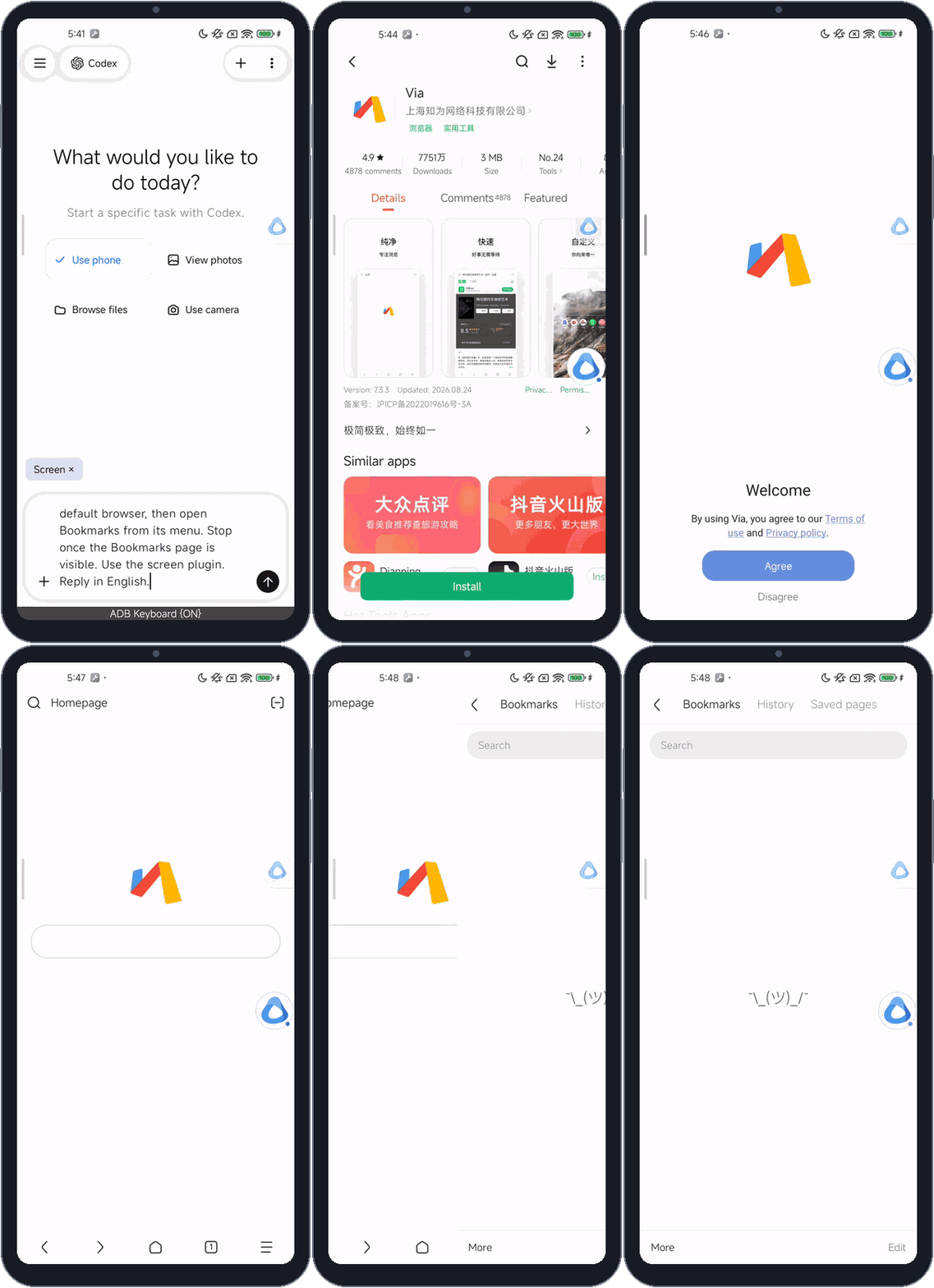
The agent never taps from memory. It reads the screen before each action and again afterwards, to confirm the page really changed.
The loop repeats until the task is done, or until a decision belongs to you.
Every action appears as a card in the conversation, in order with the agent's reasoning and replies. Cards expand while they run and fold when done; tap a title to see the screen and result from that moment.
When an outcome is uncertain, mobby says so instead of showing success. A tap or input that has already been sent is never replayed automatically, so nothing gets ordered or sent twice. After a dropped connection, the agent must read the screen again before it may act.
Finished flows can be remembered. The agent can save a verified series of taps and inputs as a workflow and replay it by ID later. Before replaying, it checks the current app, page structure and target controls, and stops if they do not match. A workflow keeps control names, actions and a structural summary of each page, never the text you typed.
Under Settings → Runtime → Screen control mode, choose which screen the agent works on.
The agent opens and operates apps on a hidden second display while you watch a live preview in mobby. The ADB client ships inside mobby: no extra app, no computer.
Needs: Android 13 or later; turn on Wireless debugging and pair once inside mobby.
mobby hides its own overlays and keeps the screen on while it acts, so hand the phone over for the duration. Best for Android 12 and earlier, or phones without wireless debugging.
Needs: the mobby Screen Control accessibility service and task notifications.
Disabled by default. Tap Check root permission and approve in your superuser manager to enable it. mobby never roots your phone or changes system permissions.
Needs: Android 13 or later, and a device that already has su.
With a virtual mode selected, every task gets a screen of its own.
Main screen · YouStay in mobby, with a live preview in the corner
Virtual display · AgentA separate 720×1280 display you never see
When a task starts, mobby creates a separate 720×1280 display. The agent finds the target app and launches it there; from then on every read, tap and swipe happens on that display and never touches your main screen.
It is not an app clone. Apps on the virtual display use the same sign-ins and data as on your phone. A few apps jump back to the main screen on their own or allow only one instance; mobby reports that plainly instead of moving the task onto your main screen.
Sign-ins, verification codes and slider checks are not the agent's call, and often it cannot do them anyway. It asks you to handle them, then carries on.
The agent names the field to fill and why. You type into a dialog in mobby and the value goes straight into the field on the virtual display. The agent never sees the original value when it reads the screen, and screenshots are withheld from it meanwhile.
Use it for: passwords, verification codes, personal details.
Tap Take over display to open the full-screen takeover page and tap, drag or go back in the app on the virtual display yourself. Tap a text field and type with your phone's own keyboard, as usual.
Use it for: slider checks, requesting codes, choices only you should make.
Text you type with the phone keyboard is visible to the agent after you hand back. For anything secret, use Enter text on the takeover page, which goes through the private input channel.
Controlling a phone takes a lot of power, so mobby keeps that power in a very small box.
ADB or root access goes to one separate screen worker. The four agents, the shell and everything else keep running as an ordinary app inside the Android sandbox.
The worker listens on 127.0.0.1 only and authenticates with a fresh random token. It offers reading, tapping, typing, swiping and similar fixed actions, with no way to run arbitrary commands.
In built-in ADB mode, each action first re-authenticates with local ADB using the same pairing. Turn wireless debugging off and the action fails right away with the reason; the pairing is kept, and the same task resumes once you turn it back on.
The ADB identity key is encrypted with Android Keystore. The six-digit pairing code is used once in memory and never written to disk or logs.
The agent's text input refuses password fields. Screens the system protects, such as some payment pages, appear black in screenshots, and mobby does not get around that.
Screen access belongs to a single conversation. Remove the AI controls phone tag and the next action has to be approved again.
The first setup takes a few minutes; after that, just open a conversation.
You pair only once. As long as wireless debugging is on, mobby reconnects with the saved pairing on its own. Phones usually turn wireless debugging off after a restart, so turn it back on; you only pair again if the system forgets the pairing.
What it cannot do yet, or what has not been verified.